How to Activate VPN in Opera Browser (Desktop and Android)
If you use Opera Browser, you may not need to install a separate VPN extension to change your browsing location. Opera includes a built-in VPN feature that you can turn on from its settings.
The exact steps depend on whether you use Opera on a computer or an Android phone. This guide explains both methods and shows you what to check if you cannot find the VPN option.
Does Opera Browser Have a Built-in VPN?
Yes. Opera provides a built-in VPN feature in its desktop browser and Opera for Android.
You do not need to download another VPN extension or create a separate VPN account to use the standard built-in feature.
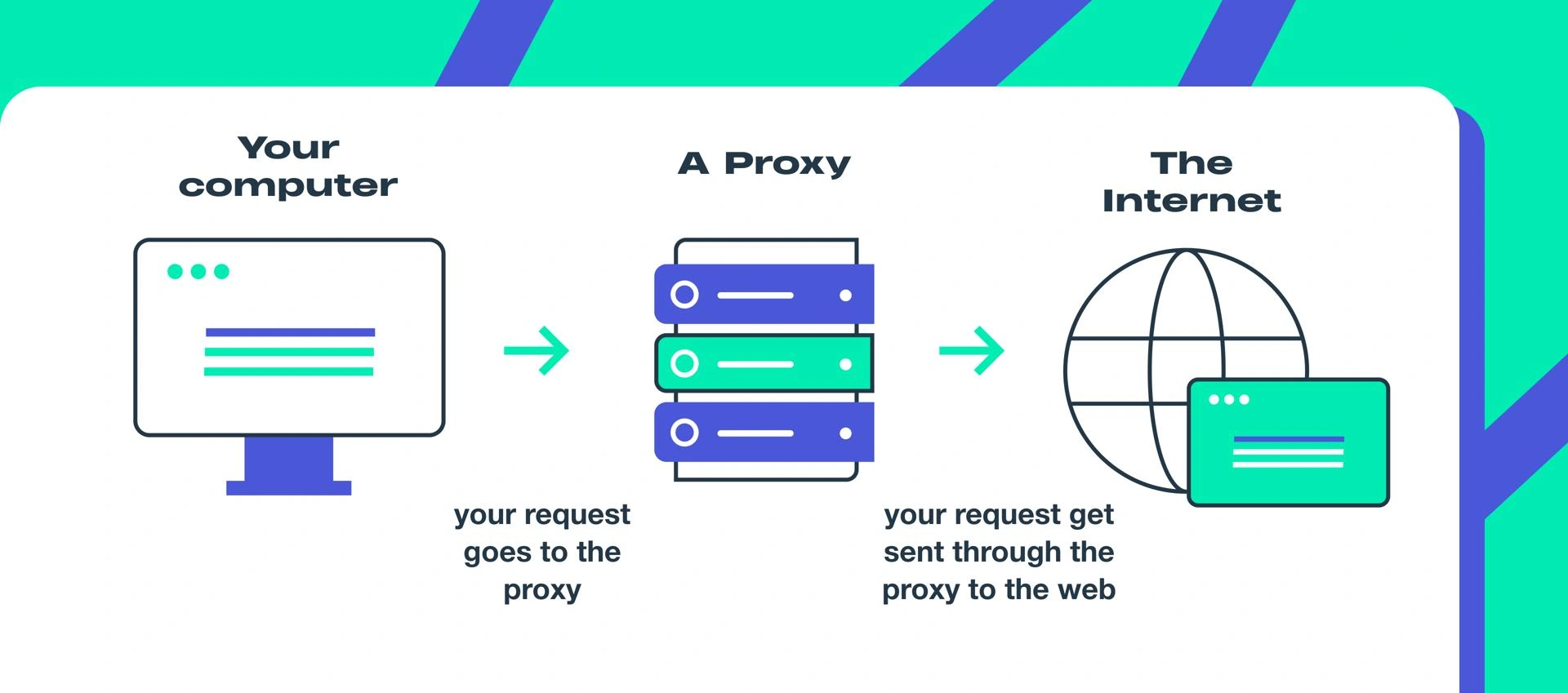
When you turn it on, Opera routes supported browser traffic through its VPN service. Websites generally see the VPN server's IP address instead of your usual public IP address.
There is one important detail: Opera's free built-in VPN is a browser feature, not a VPN for your entire device.
For example, if you turn on VPN in Opera on your computer, it does not automatically protect traffic from Chrome, games, or other applications.
How to Activate VPN in Opera on Windows or Mac
If you use Opera on a desktop or laptop, follow these steps.
Step 1: Open Opera Settings
Open Opera Browser on your computer.
Click the Opera menu in the top-left corner and select Settings.
You can also press:
- Windows: Alt + P
- Mac: Open Opera's menu and select Settings.
Step 2: Find the VPN Setting
In Settings, look for the Privacy and Security or Features section.
Depending on your Opera version, the menu may be arranged slightly differently.
You can also enter this address in Opera's address bar:
opera://settings/vpnIf the page opens, look for the VPN setting.
Step 3: Turn On Enable VPN
Find the option called Enable VPN and switch it on.
Once enabled, Opera should display a small VPN badge on the left side of the address and search bar.
This badge is the quickest way to access the VPN controls.
Step 4: Connect to the VPN
Click the VPN badge near the address bar.
A small VPN panel should appear.
Use the switch in the panel to turn the connection on or off. You may also see your virtual location and IP address.
When the connection is active, you can start browsing through Opera's VPN.
How to Activate VPN in Opera on Android
The Android version has a slightly different menu.
Follow these steps on your phone:
- Open Opera Browser on your Android device.
- Tap the Opera menu or profile/menu button.
- Open Settings.
- Look for the VPN option.
- Turn on the VPN setting if it is available.
- If Opera asks for permission to set up a VPN connection, follow the on-screen instructions.
On some versions and in some countries, Opera's Android VPN may only be available in Private mode.
If you cannot find VPN in the normal settings, try this:
- Open Opera.
- Switch to Private browsing.
- Look for the VPN option on the Private mode start page or near the address bar.
- Tap VPN to open its controls.
- Turn it on.
The location of the setting can vary depending on your Opera version and country.
How to Change Your VPN Location in Opera
After turning on VPN, you may want to use a different virtual location.
On desktop:
- Click the VPN badge near the address bar.
- Open the virtual location menu.
- Choose one of the available regions.
- Wait for Opera to connect through the selected location.
Opera's desktop VPN may show options such as Europe, Asia, and the Americas. The available choices can change.
On Android, open the VPN controls and check whether a location selector is available in your version.
You do not always need to choose a location manually. Opera may automatically select an optimal location for your connection.
How to Check If Opera VPN Is Working
Turning on the switch is only the first step. You should also check whether your public IP address has changed.
Here is a simple way to test it:
- Open a new tab in Opera.
- Search for "What is my IP address".
- Note the IP address and approximate location.
- Turn on Opera VPN.
- Refresh the IP checking page.
If the VPN is working, the displayed public IP address should normally be different and show the VPN server's approximate location.
Keep in mind that search engine location results may not always change in the same way. Opera has a setting that can allow default search engines to bypass the VPN so that local search results remain relevant.
Why Is the VPN Option Missing in Opera?
If you cannot find VPN in Opera, do not assume that your browser is broken.
Try these checks first.
- Check whether you are using the correct Opera version — make sure you are using the regular Opera Browser rather than assuming that every Opera product has the same VPN features.
- Check Private mode on Android — Opera's Android VPN may only appear in Private mode, depending on your country and browser version.
- Update Opera — an older browser version may have a different settings layout. Open Opera's update section and install available updates.
- Search the settings menu — on desktop, try opening opera://settings/vpn directly.
If the setting is still unavailable, check Opera's official help information for your version.
Why Is Opera VPN Not Connecting?
Sometimes the VPN option is visible, but the connection does not work as expected.
Try these simple fixes.
Switch to Another Network
If you are using public Wi-Fi, try switching to mobile data or another Wi-Fi network.
This helps you find out whether the problem comes from the network.
Change the Virtual Location
Open the VPN panel and select another available location.
A particular server or region may be temporarily busy.
Restart Opera
Close Opera completely and open it again. Then try enabling VPN once more.
Update Your Browser
An outdated version may contain bugs or have an older settings layout.
Check for updates and restart the browser after installing them.
Check Other VPN or Proxy Settings
If you are already using another VPN application or proxy, it may interfere with the connection.
Temporarily disconnect the other service and test Opera again.
Is Opera's Built-in VPN Enough?
Opera's built-in VPN is convenient if you mainly want to change the IP address shown by websites while browsing in Opera.
It can be useful for everyday browsing and adding privacy when using unfamiliar networks.
However, remember that it does not automatically protect all the applications on your device.
If you want to route traffic from games, messaging apps, other browsers, and other programs through a VPN, you may need a separate device-wide VPN service.
Choose the option that matches what you actually want to protect.