Protect Your Internet Connection
Public Wi-Fi networks in airports, hotels, cafes, and shared spaces can sometimes expose users to security risks. Secure VPN helps protect your connection by encrypting your internet traffic.
Windows VPN
Secure VPN for PC helps Windows users protect their online privacy, secure internet connections, and browse the web with more control. Whether you're using public Wi-Fi, accessing websites while traveling, or simply looking for a safer browsing experience, Secure VPN provides an easy way to connect through a protected VPN network.
Get Secure VPN for PCSecure VPN for PC is a VPN application designed for Windows computers that helps protect your online connection by routing your internet traffic through a VPN server.
When you connect to a VPN server, your original IP address is replaced with the VPN server's IP address. This adds an extra layer of privacy while browsing websites, using online services, or connecting to public networks.
A VPN for PC can be useful for:
Instead of connecting directly to the internet, your device connects through a secure VPN tunnel before reaching online services.
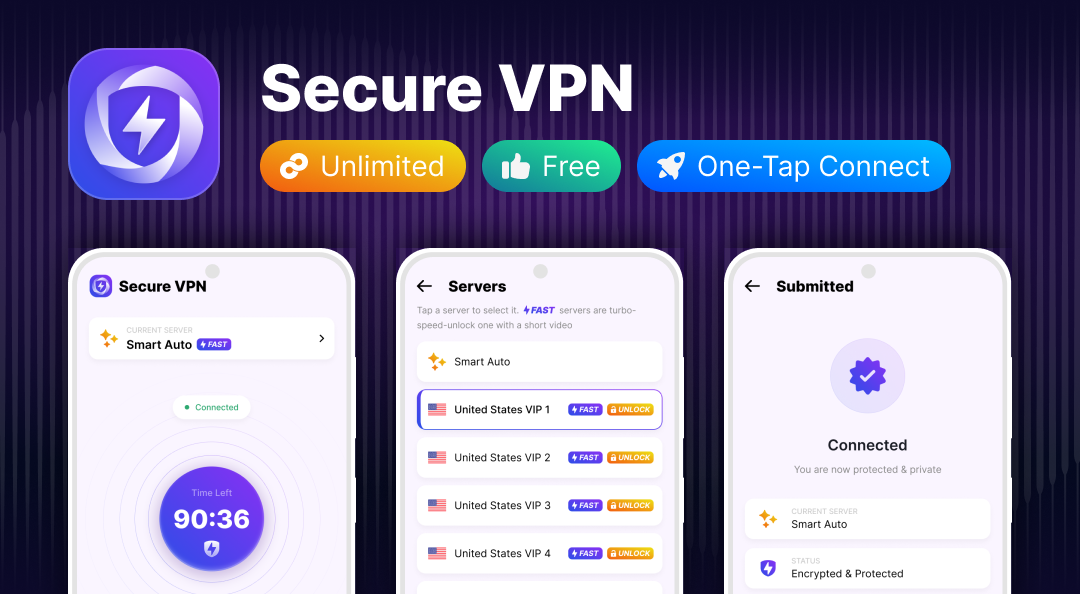
Many users spend hours online every day for work, entertainment, communication, and research. A VPN can help provide a safer browsing environment, especially when connecting through networks that you do not fully trust.
Public Wi-Fi networks in airports, hotels, cafes, and shared spaces can sometimes expose users to security risks. Secure VPN helps protect your connection by encrypting your internet traffic.
When connected to a VPN server, websites and online services see the VPN server's IP address instead of your original IP address. This helps reduce direct exposure of your location and network information.
Travelers often connect to unfamiliar networks or use different internet environments. A VPN can provide a more consistent and protected browsing experience.
For people working from home or accessing online services remotely, using a VPN can add another security layer when connecting through different networks.
Users can usually connect to a VPN server with just a few clicks without complicated network settings. This makes it suitable for beginners who want a straightforward VPN experience.
A VPN helps protect your internet traffic while connected. Whether you are browsing websites, checking emails, or using online services, your connection is routed through a protected VPN server.
When Secure VPN is active, your public IP address is replaced with the VPN server's IP address. This can help provide more privacy while browsing online.
Many VPN services provide different server locations. Choosing a suitable server can help improve connection quality depending on your location and network conditions.
A good VPN should balance security and performance. Secure VPN focuses on providing a smooth connection experience while maintaining privacy protection.
The PC application is designed to be easy to use. Most users can:
Before installing Secure VPN on your computer, make sure your Windows device meets the required system specifications.
Follow these general steps:
Download the PC version that is compatible with your Windows system. Make sure you use a trusted download source to avoid modified or unsafe installation files.
Click the download button and save the setup file on your computer. The file is usually saved in your Downloads folder.
Open the installer and follow the instructions shown on your screen. You may need to allow Windows permission before installation begins.
After installation is complete, open the application from your desktop or Start menu. Log in if required, then choose a VPN server.
Click the connect button and wait until the VPN connection is established. Once connected, your internet traffic will go through the VPN server.
Installing Secure VPN is similar to installing most Windows applications.
After installation, you can adjust settings based on your browsing needs.
Secure VPN may be available on different platforms, but PC and mobile versions provide different experiences.
| Feature | PC Version | Mobile Version |
|---|---|---|
| Windows Support | Yes | No |
| Android Support | No | Yes |
| Larger Display | Yes | No |
| Keyboard and Mouse Control | Yes | No |
| Public Wi-Fi Protection | Yes | Yes |
| Easy Connection | Yes | Yes |
The PC version is better suited for users who spend more time browsing, working, or streaming on a computer.
A VPN can improve online privacy and security, but users should always understand how a VPN service handles data.
Before using any VPN application, consider:
A VPN helps protect your connection, but it does not make you completely anonymous online. Users should still follow safe browsing practices, avoid suspicious websites, and keep their devices updated.
Even reliable VPN applications may occasionally experience connection or installation issues.
If Secure VPN cannot connect, try these solutions:
A weak network connection is one of the most common reasons for VPN connection failures.
VPN speed depends on several factors, including server distance, network quality, and device performance. Try:
If installation fails:
Frequent disconnections may happen because of:
Restarting the app or changing servers may solve the issue.
To get a better VPN experience:
Servers closer to your location usually provide better speed and lower latency.
Updates often include performance improvements and bug fixes.
A reliable Wi-Fi or wired connection can improve VPN stability.
Background applications can consume bandwidth and system resources.
Yes, Secure VPN can be used on compatible Windows computers to help protect internet connections and improve browsing privacy.
Some VPN services offer free access, while additional features or advanced servers may require a premium plan.
When connected to a VPN server, Secure VPN can replace your original IP address with the VPN server's IP address.
A VPN may work with gaming services, but performance depends on server location, network speed, and latency.
A VPN can add protection when using public Wi-Fi by encrypting your internet connection.
The best option depends on your needs. The PC version is better for desktop browsing, work, and long sessions, while mobile versions are designed for smartphones and tablets.