Open the iOS Download Page
Tap the Download Secure VPN for iOS button to access the available iOS version.
Secure VPN for iOS gives iPhone and iPad users a simple way to connect through a private VPN server. Install the app, choose an available location, and connect to protect your internet connection.
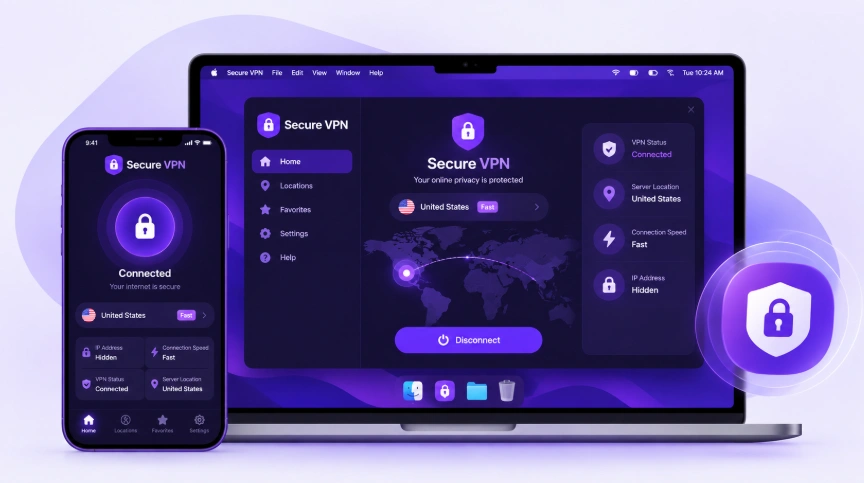
Your iPhone or iPad may connect to different networks throughout the day, including home Wi-Fi, mobile data, public hotspots, and hotel networks.
A VPN can add another layer of privacy by encrypting your connection and routing traffic through a VPN server.
Secure VPN provides a straightforward way to establish a VPN connection on iOS without requiring users to manually configure complicated network settings.
Whether you're browsing on an iPhone or using an iPad for work, streaming, or everyday browsing, you can connect to an available VPN server directly from the app.
A VPN encrypts your connection while you're connected to the VPN server, helping provide additional protection when using shared networks.
When connected to Secure VPN, your public IP address is replaced by the IP address of the VPN server.
Airports, hotels, cafés, and other public locations often provide shared Wi-Fi. A VPN can provide an additional layer of protection when connecting through these networks.
Secure VPN provides multiple available server locations, allowing you to select a location from the iOS application.
| Feature | Details |
|---|---|
| iOS Support | Designed for compatible iPhone and iPad devices |
| VPN Encryption | Helps protect your connection |
| IP Address Masking | Replaces your public IP while connected |
| Multiple Locations | Select from available VPN servers |
| Simple Connection | Connect through the mobile app |
| Public Wi-Fi Protection | Useful when using shared networks |
| iPhone & iPad | Suitable for supported iOS and iPadOS devices |
Tap the Download Secure VPN for iOS button to access the available iOS version.
Follow the installation instructions for your iPhone or iPad. If Secure VPN is distributed through the App Store, open its App Store listing and tap Get to install the application.
Once installation is complete, launch Secure VPN from your iPhone or iPad.
The first time you establish a VPN connection, iOS may ask you to allow the application to add a VPN configuration. Review the request and approve it if you want to use the VPN connection.
Open the server list and select an available VPN location.
Tap Connect and wait for the VPN connection to become active. A VPN indicator may appear in the iOS status area when the connection is active.
A VPN can be particularly useful on an iPhone because the device frequently moves between different networks.
You might use your iPhone on home Wi-Fi in the morning, mobile data while traveling, and public Wi-Fi later in the day.
Secure VPN gives you a simple way to establish a VPN connection whenever you want additional privacy while browsing or using online services.
The same VPN approach can be useful on an iPad.
Whether you're using an iPad for browsing, remote work, streaming, or connecting to public Wi-Fi, Secure VPN can route your connection through an available VPN server.
The exact interface may vary depending on your iPadOS version and the current application release.
An iPhone VPN can be useful in everyday situations such as:
A VPN is not a replacement for iOS security features, strong passwords, or safe browsing habits. It works as an additional privacy and connection layer.
Secure VPN can be used while your iPhone or iPad has an active internet connection.
When you're connected to home or public Wi-Fi, a VPN can encrypt the VPN connection and provide additional protection on shared networks.
You can also connect to a VPN while using cellular data. This allows you to maintain a VPN connection when you're away from Wi-Fi.
VPNs and proxies can both change the IP address visible to websites, but their operation is different.
| Secure VPN | Proxy | |
|---|---|---|
| iPhone support | Yes | Depends on service |
| iPad support | Yes | Depends on service |
| VPN encryption | Yes | Depends on proxy |
| IP masking | Yes | Yes |
| App-based setup | Yes | Often manual |
| Device connection | VPN connection | Usually more limited |
For users who want a simple mobile setup, a dedicated VPN application can be easier than manually configuring proxy settings.
Before installing Secure VPN, check the requirements of the current iOS application.
Your device should have:
Because Apple regularly updates iOS and iPadOS, the exact installation interface can change between system versions.
From smartphones to desktop computers, Secure VPN is designed to work on the devices you use every day. Install the app, connect to a server, and enjoy a faster, more private browsing experience wherever you go.
Yes. Secure VPN provides an iOS option for users who want to connect their iPhone through a VPN server.
Yes. Compatible iPad devices can use the iOS/iPadOS version when supported by the current application.
Download the available iOS application, install it on your iPhone, open Secure VPN, approve the VPN configuration request, select a server, and connect.
When you're connected to a VPN server, your regular public IP address is replaced by the VPN server's public IP.
Yes. A VPN can be used over an active cellular data connection as well as Wi-Fi.
Yes. A VPN can provide an additional layer of protection when your iPhone or iPad is connected to shared Wi-Fi.
No. A VPN can hide your public IP address and protect the VPN connection, but it does not prevent every form of online tracking.